Most photo collections start on one computer and then quietly outgrow it. Phones add thousands of photos a year, a good camera adds tens of gigabytes per trip, and before long the archive lives on a couple of external drives in a drawer. That's when the hard questions start:
- Which photos do I copy onto the computer, and which stay on the drive?
- How do I find a photo when the drive isn't plugged in?
- If I tag, rate or caption a photo here, does that work survive when I open the photos on another computer, or in another photo app?
- How many copies do I need, and how do I keep them consistent?
This workflow answers those questions. Part one explains the approach and the technology behind it, so you can apply it with any tool. Part two walks through it step by step in Aegis Photo Voyager.
1 Getting photos in and out
There are four ways photos move into and out of a library. It helps to keep them apart, because each has different consequences for disk space and for where your work ends up.
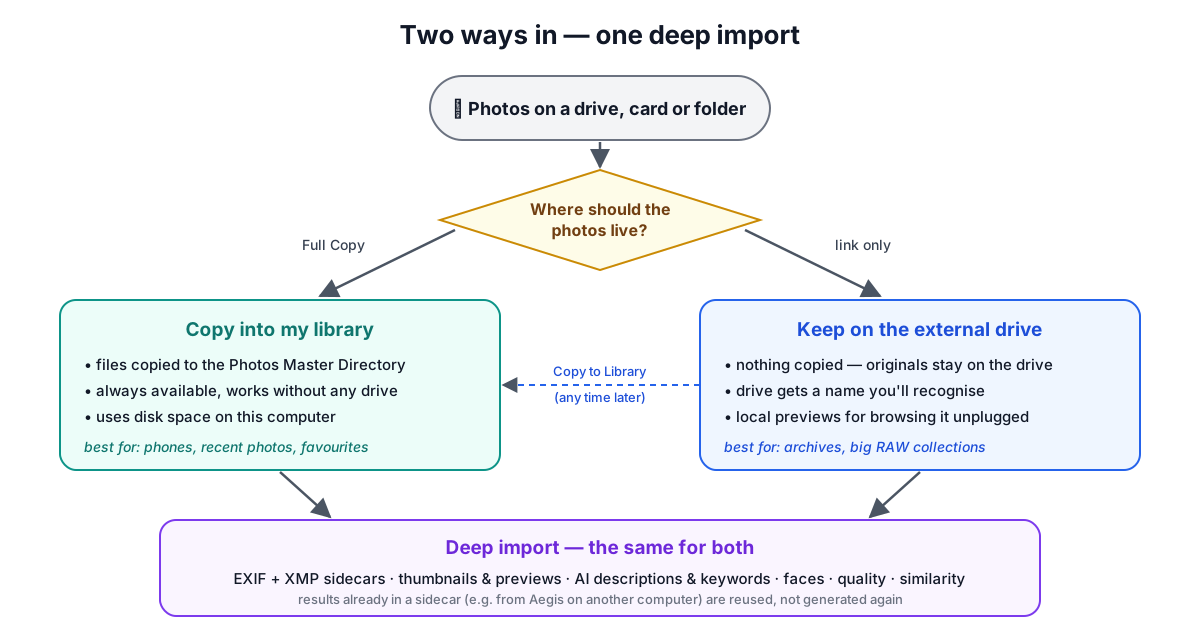
Import (copy). The photo files are copied onto your computer, into the library folder. They are always available, even on a plane, but they use disk space. This is the right choice for photos from your phone, recent shoots and favourites you look at often.
Keep on the external drive (link). Nothing is copied. The library records where each photo lives on the drive and remembers the drive under a name you choose, such as “Blue SSD – Family 2015–2024”. The originals stay where they are; your computer keeps only small previews. This is the right choice for archives and large RAW collections that would never fit on a laptop.
Deep import. Whichever way a photo comes in, the library should understand it, not just list the file. A deep import reads the camera data (EXIF) and any existing metadata files, creates thumbnails and previews, and runs the analysis that makes a large library searchable: AI descriptions and keywords, face recognition, quality scores and visual similarity. This is the slow part, and it needs the original file, so it has to happen while the drive is connected. Afterwards, the knowledge stays in the library even when the drive is in a drawer.
Export. Copies photos out again: to share them, hand them to someone, or move them to another computer. A good export carries the metadata along, so the recipient gets your keywords, captions and names, not just the pixels.
2 The approach: originals on drives, knowledge in the library
The workflow rests on one idea: separate the photos from what you know about them.
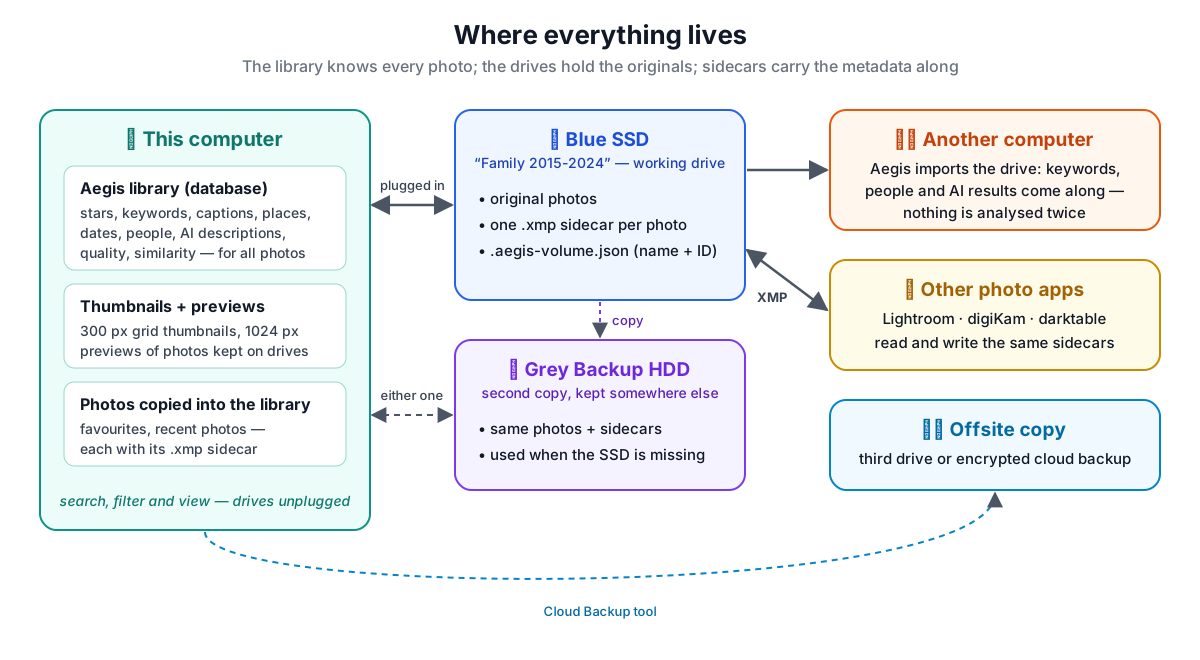
- The originals live on drives. One working drive that you plug in when you need it, plus at least one backup copy. Recent photos and favourites can also be copied onto the computer.
- The knowledge lives in the library. Stars, keywords, captions, places, dates, the people in each photo and the AI analysis are stored in the library database on your computer, together with a thumbnail and a preview of every photo. You can search, filter and browse your entire collection without any drive connected.
- The knowledge is also written next to the photos, in small sidecar files (section 3). So every copy of the photos carries its metadata, and a second computer, or another photo app, picks it up.
Multiple copies: the 3-2-1 rule
A drive in a drawer is not a backup. Drives fail, get dropped and get stolen. Photographers have relied on the 3-2-1 rule for a long time: keep three copies of your photos, on two different kinds of storage, with one copy somewhere else.
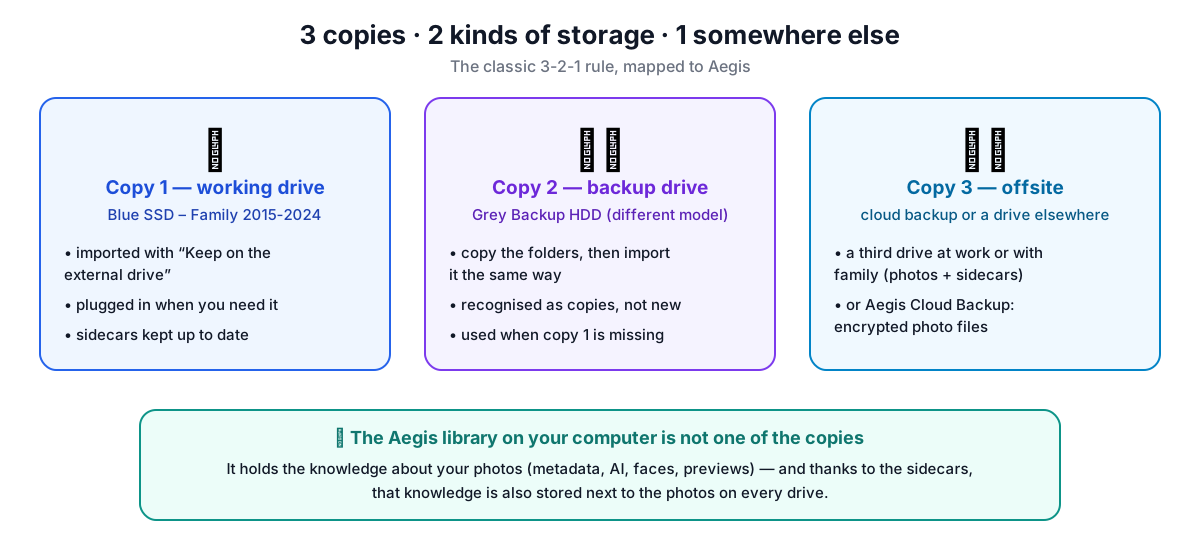
Mapped onto this workflow:
- Working drive. Imported with Keep on the external drive. You plug it in when you want the full photos.
- Backup drive. A different drive (ideally a different model) with the same photos. If you import it too, the library recognises its files as copies of the same photos, not as new photos. When the working drive is missing, the backup is used automatically.
- Offsite copy. A third drive kept at work or with family, or an encrypted cloud backup. Note that Aegis Cloud Backup uploads the photo files only, not their sidecars, so a drive copy is the better offsite choice if you want the metadata offsite too.
Note what is not on the list: the library on your computer. It holds the knowledge about your photos, not the photos themselves. Thanks to the sidecar files, that knowledge is also stored next to the photos on every drive, so losing the computer doesn't mean losing years of tagging.
Living with a drive in the drawer
Day to day, the cycle looks like this:
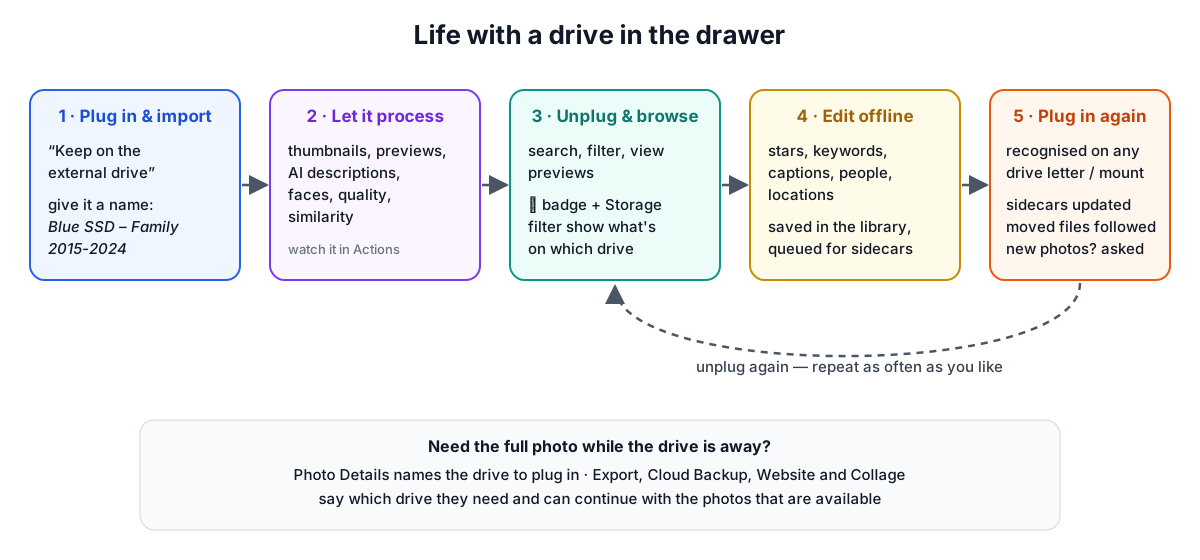
- Plug in and import with Keep on the external drive, and give the drive a name.
- Let it process. Thumbnails, previews and the AI analysis are created while the drive is connected.
- Unplug and browse. Search, filter and look at previews. Photos on the unplugged drive are marked, so you always know what's available.
- Edit offline. Rate, tag, caption and name people as usual. Edits go into the library and are queued for the sidecar files on the drive.
- Plug in again. The drive is recognised wherever it is mounted. Queued edits are written, files you moved on the drive are found again, and new photos are offered for import.
3 The technology: XMP sidecars and metadata sync
What is an XMP sidecar?
XMP (Extensible Metadata Platform) is an open standard, originally from Adobe and now ISO 16684, for describing photos: keywords, captions, ratings, location, capture date, people and much more. Metadata can be stored inside an image file, or next to it in a small text file called a sidecar:
Photos/2024/
├── P1145499.JPG          ← the photo, never modified
└── P1145499.JPG.xmp      ← its sidecar: a few kilobytes of XML
Sidecars have three big advantages:
- The original stays untouched. Writing metadata into image files changes them. That's risky for archives and confuses backup and duplicate-detection tools that rely on file contents.
- They travel with the photo. Copy the folder, and the metadata comes along, to another computer, a NAS, a synced folder or a backup.
- Other apps understand them. Lightroom Classic, Bridge, digiKam, darktable and exiftool all read and write XMP sidecars.
A sidecar is plain XML. A trimmed example:
<rdf:Description rdf:about="">
  <xmp:Rating>5</xmp:Rating>
  <dc:subject><rdf:Bag>
    <rdf:li>sunflower</rdf:li><rdf:li>summer</rdf:li>
  </rdf:Bag></dc:subject>
  <dc:description><rdf:Alt>
    <rdf:li xml:lang="x-default">Sunflowers on the Lower Rhine</rdf:li>
  </rdf:Alt></dc:description>
  <exif:GPSLatitude>51,43.512000N</exif:GPSLatitude>
  <exif:GPSLongitude>6,17.418000E</exif:GPSLongitude>
  <mwg-rs:Regions>…named face regions…</mwg-rs:Regions>
</rdf:Description>
What metadata goes where
| Metadata | Standard XMP field (read by other apps) |
|---|---|
| Keywords | dc:subject |
| Caption | dc:description |
| Rating / favourite | xmp:Rating |
| Location | exif:GPSLatitude, exif:GPSLongitude |
| Date taken | exif:DateTimeOriginal |
| People | mwg-rs:Regions: Metadata Working Group face regions with names |
Aegis also stores some things other apps don't know about, in its own namespace, which those apps leave untouched: the full AI analysis (description, objects, mood, quality scores and a visual-similarity fingerprint), the face recognition data for each face, a stable ID for each person, and per-field timestamps used for syncing. Another computer running Aegis can then reuse all of it instead of spending hours analysing the same photos again.
Metadata sync strategies
As soon as metadata exists in two places (the library and the sidecar), the two can disagree. You tag a photo on your laptop while someone captions it on the desktop, or you fix a location in Aegis and a keyword in Lightroom. There are several ways to handle that, and they differ a lot in how much work they silently throw away:
| Strategy | How it works | What goes wrong |
|---|---|---|
| Write only | The app writes sidecars but never reads them back. | Edits made in other apps or on other computers are ignored. |
| Read once | Sidecars are read on import, then ignored. | Later changes never arrive. |
| Newest file wins | Compare file dates; take the newer file entirely. | File dates change when files are copied or synced, and one new keyword can overwrite an unrelated new caption. |
| Newest field wins | Compare per field, using timestamps. | Better, but deletions are ambiguous, and clocks on different computers disagree. |
| Three-way merge (Aegis) | Compare each field with the state both sides last agreed on. | Real conflicts still need a decision, so they are listed for review and can be undone. |
The three-way merge is the same idea version-control systems use for source code. For each photo, Aegis remembers the base: the values the library and the sidecar agreed on the last time they were synced. On the next sync it asks, for every field, who changed it since then?
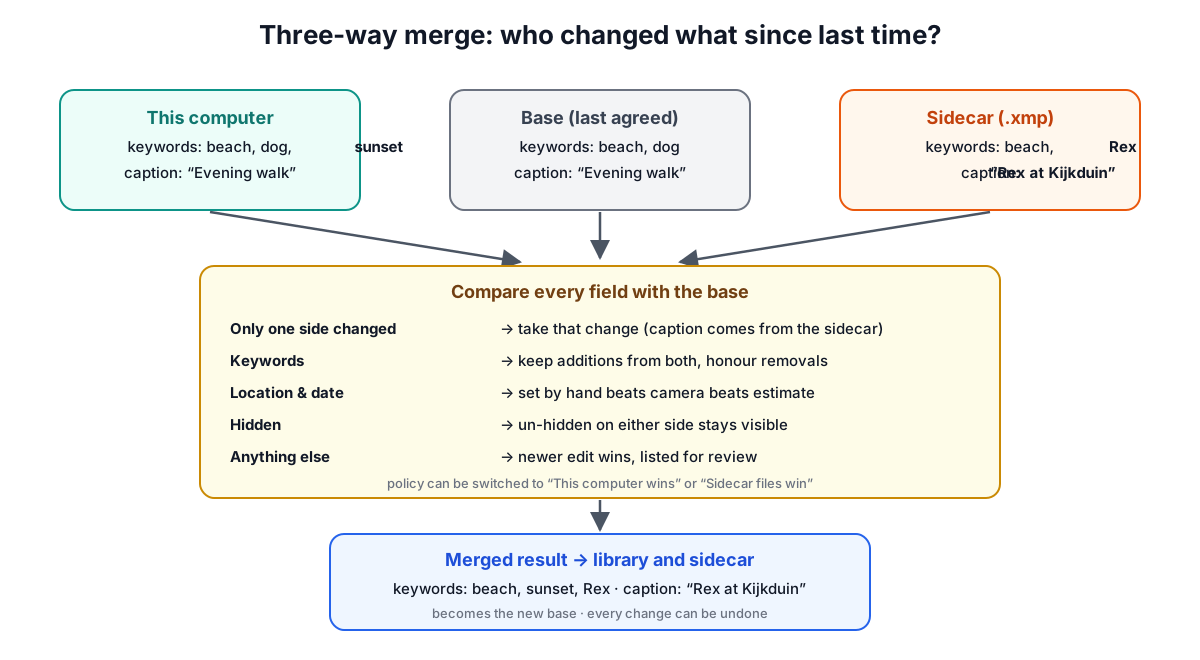
- Only one side changed: take that change. This covers almost everything, automatically.
- Both sides changed keywords: keep the additions from both and honour removals.
- Both changed a location or date: a value you set by hand beats one the camera recorded, which beats an estimate.
- Both changed anything else: the newer edit wins, and the case is listed so you can check it.
- People: faces are matched by their position in the photo. A name beats “unknown”, a name you assigned beats an automatic match, and renaming a person on one computer renames them on the other.
Every change a sync makes is recorded and can be undone. And if you'd rather not merge at all, for example during a one-off migration, you can switch to This computer wins or Sidecar files win.
4 Step by step in Aegis Photo Voyager
Step 1: Check the settings
Open Configure → Sources and scroll down.
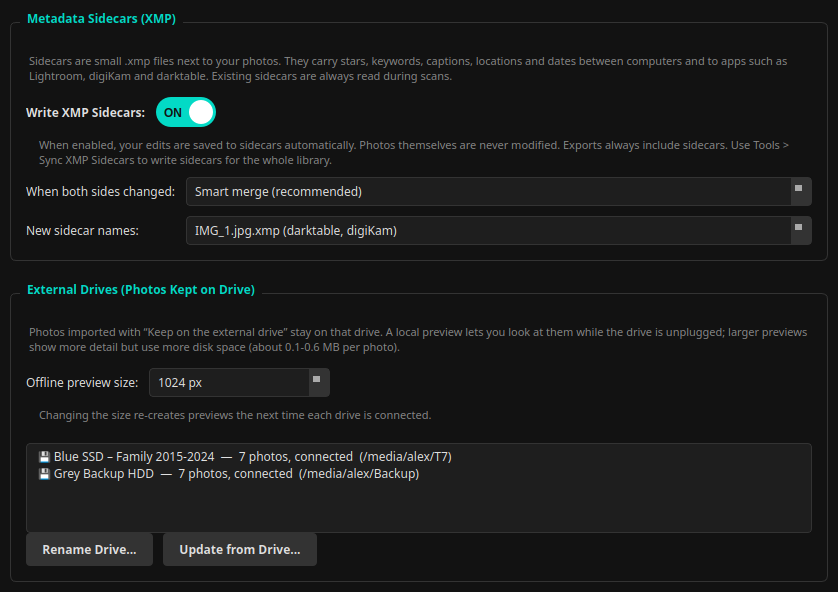
- Write XMP Sidecars is on by default. Leave it on: it is what makes your edits travel. Your photos themselves are never modified.
- When both sides changed: keep Smart merge (recommended).
- New sidecar names:
IMG_1.jpg.xmpworks with darktable and digiKam and can't clash when a RAW and a JPEG share a name. ChooseIMG_1.xmpif you work with Lightroom. - Offline preview size: the size of the local preview kept for photos that stay on a drive. 1024 px is a good default; choose 1600 or 2048 px if you have the disk space and want more detail with the drive unplugged.
The External Drives list fills up as you import drives. It shows each drive's photo count, whether it's connected and where it was last seen, and lets you rename a drive or add new photos from it later.
Step 2: Import a drive and keep the photos on it
Plug in the drive and open Import (Quick Tools in the sidebar, or Tools → Import → Import Photos).
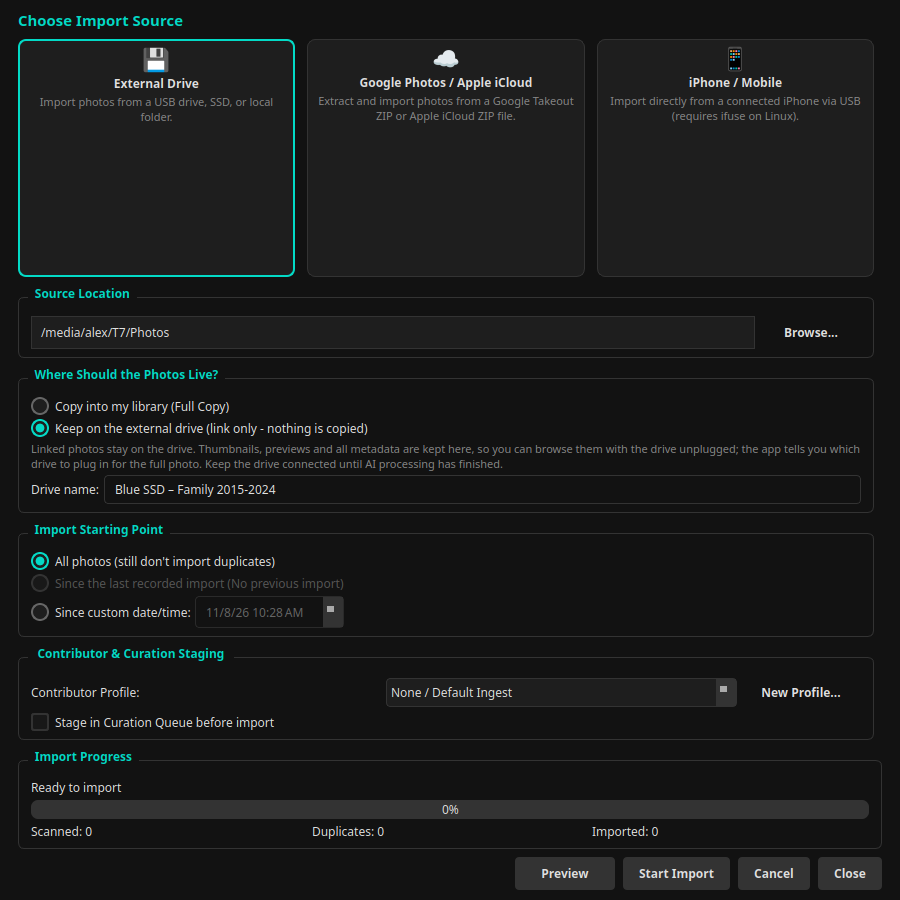
- Choose External Drive and Browse… to the top folder of your photos on the drive, for example
Photos. - Under Where Should the Photos Live? choose Keep on the external drive (link only – nothing is copied).
- Enter a Drive name you'll recognise on the shelf. It's stored on the drive itself, so it shows up the same on every computer.
- Click Start Import.
Aegis indexes the photos where they are. If they already have XMP sidecars, from Lightroom, digiKam or Aegis on another computer, their keywords, captions, people and AI results are imported, and nothing that's already there is generated again.
Step 3: Let the deep import finish
After the import, Aegis starts its processing pipeline: thumbnails and previews, AI descriptions and keywords, face recognition, quality and similarity. Open Actions (top bar) to watch the progress.
Keep the drive connected until the jobs are finished. If you unplug it early, nothing breaks: unfinished photos are simply skipped and picked up the next time the drive is connected.
Step 4: Unplug and keep working
Unplug the drive. The library stays fully usable:
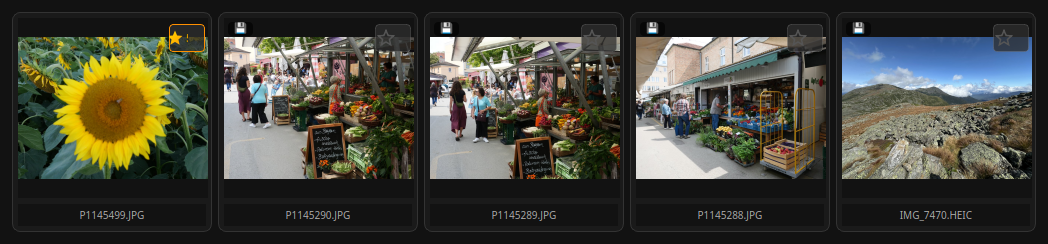
- Photos whose drive isn't connected show a 💾 badge. Hover over it to see which drive they're on. Photos copied onto the computer (like the sunflower above) have no badge.
- Search and filters work as always, because everything you'd search for is in the library.
- Open a photo to see its preview, with a note telling you exactly which drive to plug in for the full-resolution original. If a backup drive holds a copy, either one will do.
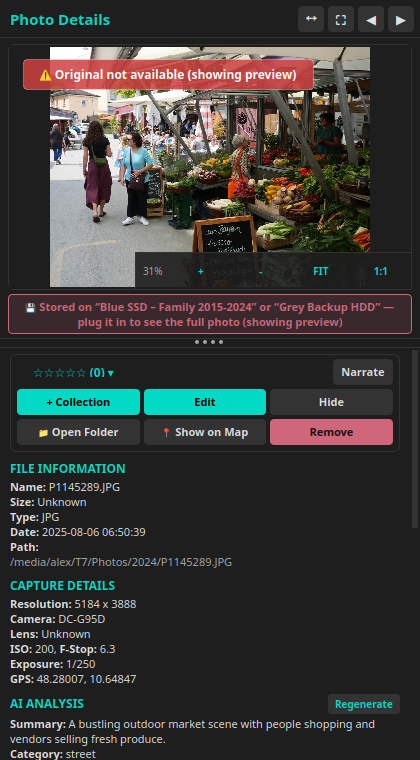
The Storage filter in the sidebar answers “what can I use right now?”:
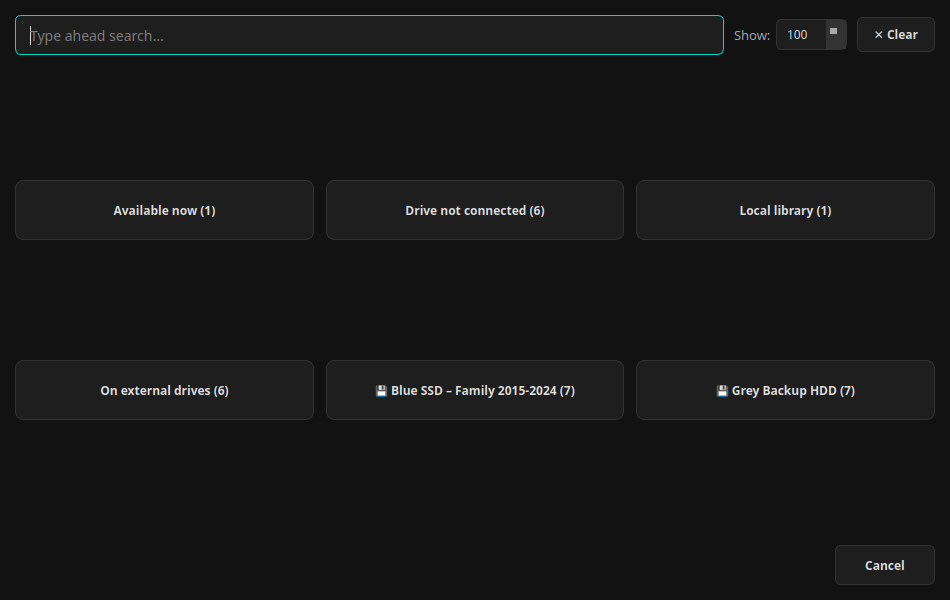
| Choice | Shows |
|---|---|
| Available now | Photos on this computer and on connected drives |
| Local library | Photos on this computer |
| On external drives | Everything kept on drives |
| Drive not connected | Photos whose drive is unplugged |
| Missing from drive | Photos no longer found on their (connected) drive |
| 💾 drive name | Everything on one particular drive |
Edit as usual while the drive is away: stars, keywords, captions, people, locations. The changes are saved in the library immediately and written to the sidecars on the drive the next time it's connected.
Step 5: Plug the drive back in
Aegis notices within a few seconds. A message in the status bar confirms it, and then:
- the full photos are available again, even if the drive got a different drive letter or mount point;
- edits made in the meantime are written to the sidecars;
- waiting work (previews, AI analysis) is finished;
- photos you moved or renamed on the drive are found again automatically; photos you deleted from it are marked Missing from drive (their metadata stays in the library);
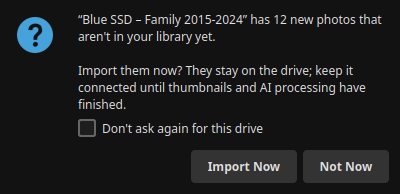
- if there are new photos in the imported folders, Aegis asks whether to import them:
Step 6: Add a backup drive
Copy the photo folders from the working drive to a second drive with your file manager or backup tool, then import the second drive exactly like the first (Step 2), with its own name, for example “Grey Backup HDD”.
Aegis recognises identical files and records them as second copies of the photos you already have; nothing is duplicated in the library. From then on, whichever drive is plugged in is used, and the offline note lists both names.
Step 7: Work with another computer or another app
On a second computer with Aegis, import the same drive (Step 2). The keywords, captions, stars, places, people and AI results come from the sidecars, so the second computer doesn't spend hours analysing the photos again.
To pull in changes made elsewhere, for example captions added in Lightroom or digiKam, connect the drive and open Tools → Photo Tools → Sync XMP Sidecars. (For photos in your Library Folders on the computer, the regular discovery scan picks up changed sidecars too.)
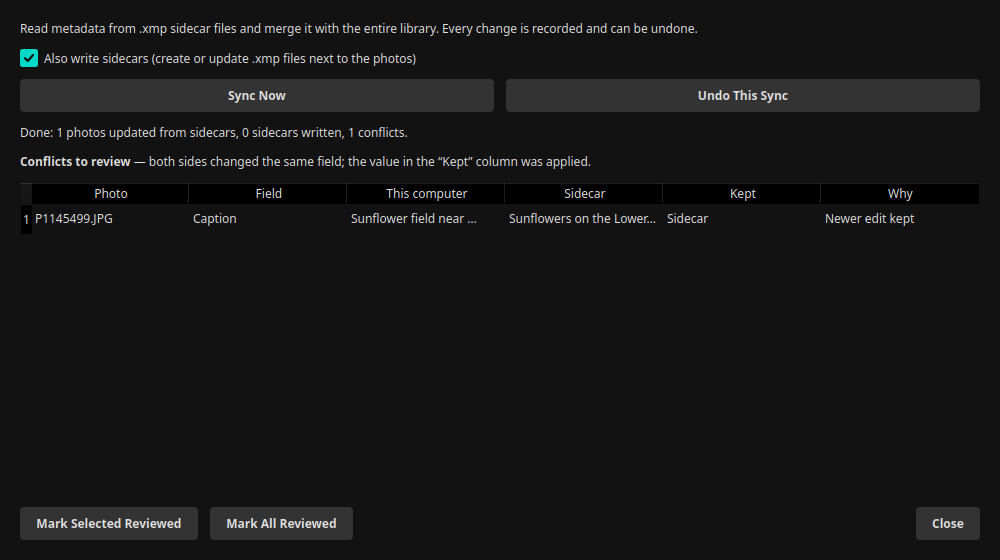
The Conflicts to review list shows the rare cases where the same field was changed on both sides: the value on this computer, the value in the sidecar, which one was kept and why. Mark them as reviewed, or use Undo This Sync to restore everything the sync changed.
Step 8: Export and share
Export Photos (Quick Tools, or Tools → Export → Export Photos) copies each photo's sidecar along with it, after saving any pending edits. The recipient gets your keywords, captions and names in any XMP-aware app.
If some of the photos you're exporting are on a drive that isn't connected, Aegis tells you which one and lets you continue with the photos that are available:
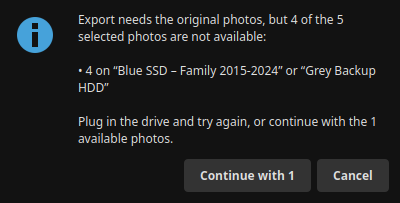
Cloud Backup, Make a Website and Make Collage behave the same way.
Step 9: Bring favourites onto the computer
Photos you look at all the time don't have to depend on a drive. Select them, right-click and choose 📥 Copy to Library. They are copied, with their sidecars, into your library folder, and the copy on the drive stays as a backup.
5 Tips and tricks
Label drives the way you name them
Put a sticker with the same name on the drive case. “Plug in Blue SSD – Family 2015–2024” is only helpful if you can find it.
Import one top folder per drive
Choose the folder that holds all your photos (for example Photos), not dozens of subfolders. Aegis rescans the imported folders whenever the drive is reconnected, so a single top folder means new photos anywhere below it are found.
Reorganise freely
Moving or renaming photos on the drive is fine: they're found again by content the next time the drive is connected. Deleting a file only marks the photo Missing from drive; nothing disappears from the library without you knowing.
Budget for previews
At 1024 px a preview is roughly 0.1–0.3 MB, so 10,000 photos need a few gigabytes. If the computer has room, 1600 or 2048 px gives noticeably more detail with the drive unplugged. A new size takes effect the next time each drive is connected.
Wait for “finished” before unplugging
Thumbnails, previews and AI analysis need the original files. Check Actions; anything unfinished resumes on the next connection.
Create sidecars for the whole library once
Sidecars are written automatically for photos you edit. To give every photo one, which is handy before a migration or before handing over a drive, run Tools → Photo Tools → Sync XMP Sidecars once with Also write sidecars checked.
Working with Lightroom?
Set New sidecar names to IMG_1.xmp. Lightroom reads sidecars for RAW files; for JPEG and HEIC it keeps metadata inside its catalogue or the file, which Aegis doesn't read.
Inspect a sidecar
exiftool -struct -XMP:all IMG_1234.jpg.xmp shows everything that's stored, in readable form.
Filter before you share
Set the Storage filter to Available now before exporting or building a website, and you'll only select photos you can actually use.
Cloning a drive works too
A file-by-file clone that includes the hidden .aegis-volume.json file is treated as the same drive. That's fine for an identical backup. If you want Aegis to know which physical drive is which, copy the photo folders instead and import the copy under its own name.
Read-only drives
Some drives can only be read, such as Windows-formatted (NTFS) drives on a Mac without extra software. Aegis still recognises them by their filesystem ID and can index them, but it can't write sidecars there; your edits stay safe in the library.
Linux snap users
If an external drive doesn't appear, allow access to removable media: sudo snap connect aegisphotovoyager:removable-media.
Check the conflict list now and then
After syncing with another computer or app, glance at Sync XMP Sidecars → Conflicts to review. It's usually empty; when it isn't, every decision can be undone.
6 Summary
- Copy what you use every day; keep on the drive what you archive. Either way, do a deep import while the drive is connected.
- Keep three copies on two kinds of storage, one elsewhere. Import backup drives too; they become interchangeable copies.
- Let XMP sidecars carry your stars, keywords, captions, places, people and AI results with every copy of the photos, to other computers and other apps.
- A three-way merge keeps both sides' changes, settles most differences automatically, lists the rest and can undo every change.
- With the drive unplugged, the library still knows everything. Aegis Photo Voyager shows you what's available and tells you which drive to plug in when you need the original.
Aegis Photo Voyager is a privacy-first photo organizer: all AI analysis runs locally on your computer.