Aegis Backup Documentation
Aegis Backup backs up every computer in your home or small office to your own USB drives, NAS shares and other computers — a second computer at home, or a friend's as your copy away from home — and shows at a glance which data is safe and which is not. Nothing goes to a cloud: no accounts, no tracking.
The Overview answers three questions in a few seconds:
- What is not backed up? The alerts under Needs attention and the Changed files not backed up tile.
- How stale is my newest copy? The Newest backup tile.
- When was my data last backed up? The Required data backed up this week tile and the last-backup bars per machine and per class.
A backup you can trust. A run counts as a success only when every file was read. If anything could not be read, the run is reported as incomplete, and its report lists exactly which files were left out and why. Snapshots are only ever added; old ones are removed only by the retention policy you set.
How It Works
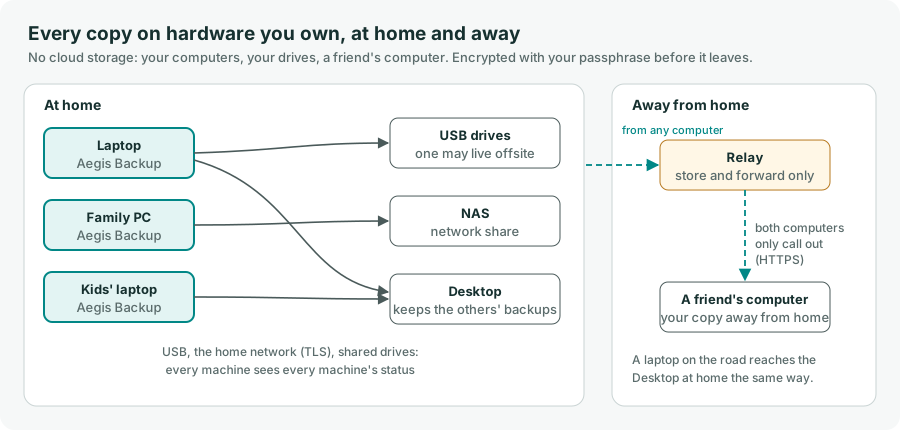
A good backup follows the 3-2-1 rule: three copies, on two different devices, one away from home. Every computer runs Aegis Backup. Each knows which of its files matter, backs them up on a schedule to the destinations of its plans, and checks them. Every backup also leaves a small status note on the destination, so any computer shows the state of the whole household.
Inside one computer
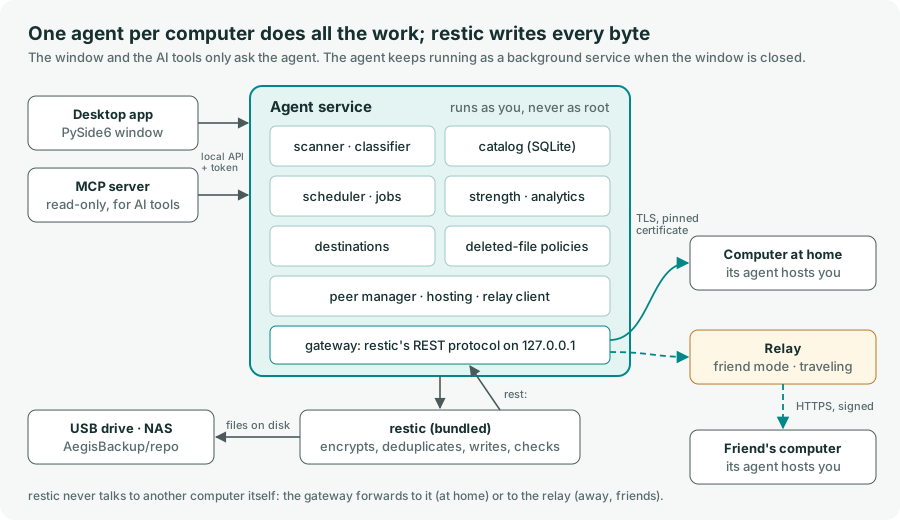
The agent does all the work and keeps running as a background service when the window is closed. The window and the AI tools only ask it, through a local API protected by a token. The agent scans and classifies your files into a catalog, runs the plans and checks, and hands the actual writing to restic, which encrypts and deduplicates.
One backup run
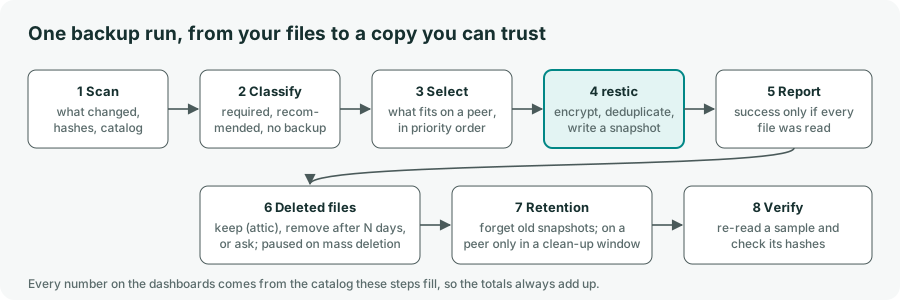
Every step writes what it did into the catalog: which version of each file each destination holds, what was left out and why, every check. The dashboards, the map and the simple view are all computed from it, so their numbers always agree.
Installation & Setup
Aegis Backup is available for Linux as a Debian/Ubuntu .deb package or as a Snap from the download page. Both bundle restic.
Debian / Ubuntu (.deb)
cd ~/Downloads
sudo apt install ./aegisbackup_*_amd64.deb
Snap
sudo snap install aegisbackup --candidate
sudo snap connect aegisbackup:removable-media
sudo snap connect aegisbackup:mount-observe
The Snap's confinement can't read hidden files and folders in your home folder
(~/.ssh, ~/.config, …), so it skips them. Install the .deb to back
those up as well.
The first-run wizard
On first start you read and accept the terms and conditions. The wizard then sets everything up in four steps (run it again any time from Tools → Run first-run wizard again):
- Pick sources. Usually your home folder; inside it, the classification decides what matters.
- Accept the default classes. You can change any folder later.
- Add a first drive. Plug in a USB drive or pick a NAS share.
- Set a passphrase (optional, recommended). It keeps every backup private if a drive is lost.
Finishing creates a daily plan called Everything important, starts the first scan and offers to print the recovery sheet. Print it and keep it somewhere safe. On a new computer, the wizard can also bring over everything an old computer backed up.
After the first scan
- Open Files → Review: Unclassified and decide the largest folders first.
- Check Files → Excluded to make sure nothing important ended up there.
- Add a second destination on a different device, and keep one offsite. Needs attention tells you while either is missing.
Keep backups running
Until you install the background service, the agent runs inside the window and scheduled backups only happen while the app is open. Configure → Background service → Install keeps schedules and drive detection running when the window is closed. It runs as your own user, never as root.
The Pages
| Page | What it holds |
|---|---|
| Overview | The simple view (are my files safe?) or the details: headline numbers, alerts, last backup per machine and class. |
| Map | Every machine, where its backups go, how they travel there and when the last one arrived. |
| Activities | The running backup, restore, scan or check, with progress, time remaining and throughput; queued and recent jobs. |
| Devices | Every machine in the household and its status. |
| Destinations | Drives, shares and other computers: space, last backup, verification, offsite. |
| Guests | Other computers' backups kept on this one. |
| Files | The scan as a folder tree, the Unclassified review list, exclusions, rules, sources and deleted files. |
| Backups | Plans, schedules and the history of every run with its report. |
| Restore | Browse and search any snapshot, restore files or folders, copy folders to this computer. |
| Analytics | Changes, temperature, last backup, growth and capacity forecast. |
The status bar shows the progress of any running job on every page; click it to open Activities.
Classes & Rules
Every file gets one of three classes. Rules are checked top to bottom and the first match wins.
| Class | Examples | What happens |
|---|---|---|
| Backup required | Documents, Desktop, Pictures, Videos, email, password vaults, SSH/GPG keys, projects, financial records | Included in every plan; alerts when not backed up |
| Backup recommended | Downloads, Music, game saves, app settings, git repositories with a remote, virtual machines | Included unless you exclude it |
| No backup needed | Programs, caches, temp, trash, node_modules, build output, installers | Excluded, listed for review |
Anything no rule matches is Unclassified. It is listed largest first so the expensive decisions come first, and it is backed up until you decide. Nothing is guessed silently.
Changing a class
Select folders or files on the Files page and set their class, or right-click a folder and choose Set class:
- This folder only: a rule for that exact folder.
- Every folder named …: a reusable rule for all folders with that name, anywhere.
A class set on a folder applies to everything inside, except what has its own setting: the most specific setting wins. The Set by column shows where each class comes from.
Your own rules
Your rules are saved in ~/.aegisbackup/classification.local.yml and checked before the
shipped ones. You can edit the file by hand and press Reload rule files:
- name: Photo exports
  class: required
  paths: ["~/Exports/**"]   # globs: ~ home, * one folder level, ** any depth
  types: [jpg, png]        # file extensions
  min_size: 1MB            # also max_size
  marker: .git             # inside a folder containing this (or git_remote)
Put an empty file named .nobackup in a folder to exclude it and everything
inside.
Destinations & Drives
A destination is a USB drive, a NAS or network share (SMB or NFS, mounted by your operating
system), or another computer. On drives and shares Aegis Backup creates one folder,
AegisBackup:
AegisBackup/
  aegis-destination.json   ID file
  repo/                    the encrypted restic repository
  manifests/               one summary per machine (the household view)
  reports/                 one report per backup run
USB drives
A drive is recognised by its ID file and volume UUID, wherever it is mounted. When a known drive is plugged in, pending plans start automatically or after asking you, as set in Configure → General.
Offsite rotation
Mark a drive you keep away from home as offsite. It keeps a copy safe from fire or theft at home, and the app reminds you when it has not been connected for longer than its rotation period.
Verification
Connected destinations are verified regularly: a sample of stored data is re-read and its hashes checked. Full check re-reads everything. Required data without a verified offsite copy from the last 30 days shows under Needs attention.
Deduplication
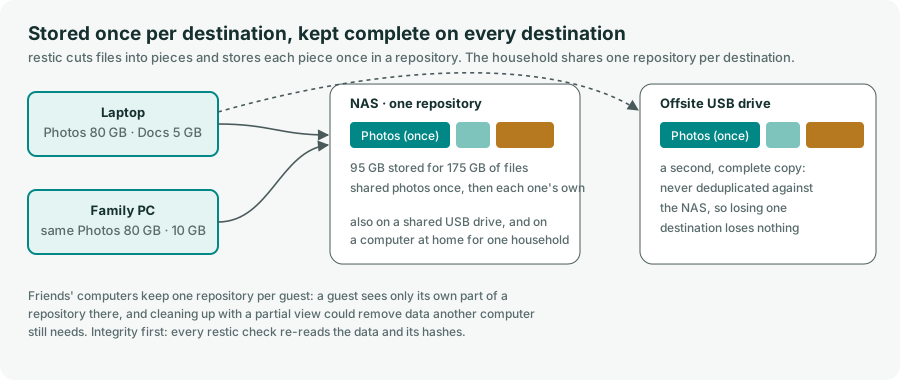
restic stores every piece of data once per destination. A file you have twice, the same photos on two family computers, or a file that didn't change since the last backup takes no extra space. Each destination, though, is a separate, complete copy: nothing is deduplicated between destinations, so losing one loses nothing.
When backups are deleted
If the AegisBackup folder on a destination is deleted while the drive is still there,
Aegis Backup says so instead of treating it as unplugged, and stops backing up to it. Choose
Start new backup here to begin a new, full backup.
Clear All Backups and Meta Data deletes every backup on the selected destination, including other machines' backups on it, and sets it up again with the current passphrase. Use it when the passphrase is forgotten or for a clean start. You confirm by typing the destination's name; it cannot be undone.
Plans & Schedules
A backup plan links folders on this machine to one or more destinations, with a schedule and a retention policy.
Schedules
- Every hour, daily or weekly at a time you choose. A run missed because a drive was unplugged is owed: it runs when the drive comes back.
- When the drive is plugged in: once per connection.
- Manually.
Scheduled runs can skip while on battery. Scans run at low priority and pause on battery. Between scans, changes are picked up by periodic rescans (every 6 hours by default).
What is copied
Inside the plan's folders, required, recommended and (by default) unclassified files are copied; No backup needed is skipped. Before each run the agent rescans for changes, and only changed data is written.
Retention
Each plan keeps a number of daily, weekly and monthly snapshots. The newest is always kept. Space is reclaimed at most weekly per destination.
History and reports
Backups → History lists every run with its result. Double-click one to see its
report: every file left out and why (excluded by class, or unreadable). The same report is written
next to the data, in AegisBackup/reports.
Files You Delete
A file you delete on your computer stays in your backups until its class's rule says otherwise (Configure → Deleted files; a plan can differ):
- Keep forever: it is never removed from the backups.
- Remove after a number of days (90 by default for Backup recommended).
- Ask me (the default for Backup required): it waits on Files → Deleted files, folder by folder, largest first, until you choose Keep in backups or Remove from backups.
Kept files survive the retention policy: they move into a small extra snapshot of their own.
Mass-deletion guard. If a scan finds very many files deleted at once — ransomware, or a mistake — removing deleted files from your backups pauses until you confirm on Files → Deleted files.
Backups on Another Computer
Another computer can be a destination, just like a drive. Your files are encrypted with your passphrase on your computer before they leave it, so the other computer and the relay can never read them. A passphrase is required for these destinations.
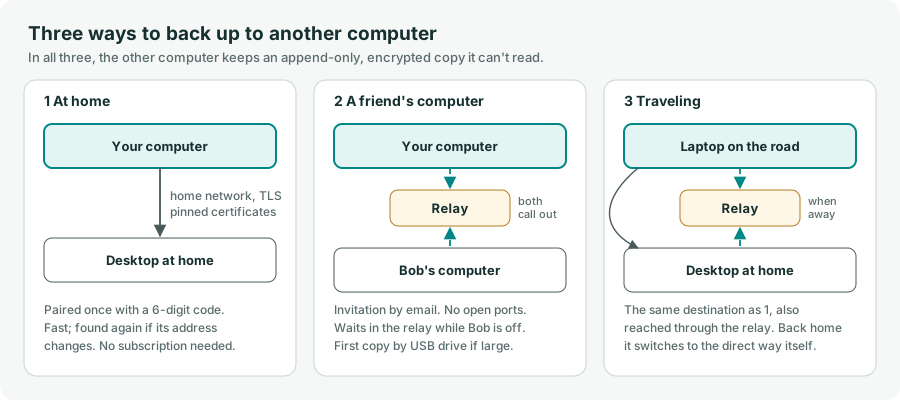
A computer at home
- On the computer that will keep the backups, open Guests and set Keep other computers' backups to Always or Only while this window is open.
- On your computer, open Destinations → Add destination… → Another computer at home. It is found automatically; if not, type the address the Guests page shows.
- Both screens show the same 6-digit code. Check that they match, then accept on the other computer and choose how much space your computer may use there.
- Add the new destination to a backup plan on the Backups page.
The computers talk directly on your network over TLS, each recognising the other's certificate from the pairing.
A friend's computer
- Both of you enter a friend-mode service key for the relay under Configure → Peer backup (see Beta & Licensing).
- Your friend opens Guests → Invite a friend's computer…, chooses how much space you may use, and sends you the invitation.
- You open Destinations → Add destination… → A friend's computer and paste it. Read the 6 digits to your friend: their screen shows the same ones.
The two computers never connect to each other: both only call the relay
(www.yourprivacysw.com/aegisbackupapi, or one you run yourself), which holds encrypted,
signed pieces of your backup only until your friend's computer has taken them (up to 100 MB by
default). A backup runs even while your friend's computer is off, and arrives when it is on
again.
The first copy by drive. A first backup of hundreds of gigabytes is slow over the internet. Choose Destinations → Seed by drive… to put the first copy on a USB drive; your friend imports it with Guests → Import a drive…. From then on only changes travel.
If your service key ends, backups through the relay stop, but your backups stay on your friend's computer: your friend can always restore them for you there, or hand you a drive.
Traveling
When both computers have a service key, pairing at home also sets up a way in through the relay, so a laptop keeps backing up to the computer at home while you are away. Back home, it switches to the home network by itself and sends what is still waiting straight across. Old backups are only cleaned up from home.
Space and priorities
The other computer's owner sets how much space you may use. Your computer fills it in order: Backup required first, then Backup recommended, then unclassified; within a class, the folders you put first, then recently changed files first. Destinations → Space… shows what fits and lets you reorder folders or ask for more space.
Deleting old backups safely
Another computer's copy is append-only: your computer can add to it but not delete from it. Removing old snapshots needs a clean-up window that opens by itself 7 days after it is asked for (the owner can allow it at once). Someone who takes over your computer cannot wipe your copy on the other computer.
Keeping other computers' backups (Guests)
Each guest's backup is a folder of its own, encrypted with the guest's passphrase; you can't read it. Change allowed space… sets the limit — a guest over it stops adding, nothing is deleted. Restore here… restores a guest's folders onto your computer with the guest's passphrase, for example for a friend who lost their computer; the passphrase is used once and never saved, and the guest is told. Remove… stops keeping a guest's backups.
Running your own relay
Under Configure → Peer backup, Run a relay starts one inside Aegis Backup.
On a server, run aegisbackup --relay and manage service keys with
aegisbackup --relay-admin.
Before you use backups on other computers or the relay, make sure you know the laws of your country, state or region. Backing up or sharing illegal files is not allowed.
Several Machines (Household)
Install Aegis Backup on each computer and use the same passphrase everywhere (or none on all of them). Machines can share destinations: plug the same drive into each, or point each at the same NAS share.
After every backup, a machine writes a small manifest into the destination: its name, plans, last snapshot, and file counts by class and temperature. Any machine that sees that drive or share shows the status of all machines on its Devices and Overview pages — with no cloud and no network connection between the machines. A drive kept offsite still reports what it held when it was last connected.
A drive another machine set up appears on Destinations under found but not set up on this machine: choose Use this drive.
Copying files to another computer
To have, say, your photo collection on a second computer too: on that computer open Restore → Copy to this computer…, pick the machine and the folder, and where it goes. The original computer doesn't need to be on. Tick Keep it updated to copy new and changed files after each new backup; files changed on the second computer are never overwritten.
Restoring Files
- Open Restore and pick a connected destination.
- Pick the machine and the snapshot (date and time).
- Browse the folders, or search all snapshots by name.
- Select files or folders and choose Restore to a folder… or Restore to original location….
When restoring to the original location you are asked what to do when a file on disk is newer than
the backup. The default keeps the newer file; a restore never overwrites newer files without
asking. Restoring to a folder recreates the full path inside it (for example
restored/home/you/Documents/…), so nothing collides.
Restore is never limited by the license.
Restoring Without Aegis Backup
Backups are written in restic's open, documented format. On any computer with restic installed:
restic -r /media/you/Drive/AegisBackup/repo snapshots
restic -r /media/you/Drive/AegisBackup/repo restore latest --host yourpc --target ~/restored
On a computer that keeps other computers' backups, each guest's backup is a plain restic folder too. Your printable recovery sheet (Tools → Print recovery sheet) includes these steps.
Dashboards & Analytics
Last backup
Every file shows when it was last backed up: the newest time any destination confirmed a copy of it. The dashboards group data by that date — last 24 hours, last 7 days, last 30 days, older, or never. A folder shows the oldest last backup of the files inside it. The headline number on the Overview is the share of required data backed up in the last 7 days.
Behind the scenes Aegis Backup checks the 3-2-1 rule (copies on two drives, one of them offsite, verified recently) and says in plain words under Needs attention when required data is on only one drive or has no verified offsite copy.
Temperature
Files are hot (changed within 7 days), warm (8–90 days), cool (91–365 days) or frozen (older). The thresholds are editable on Analytics → Temperature. Hot required data that changed since its last backup is the top alert.
Changes and growth
Bytes and files added, modified and deleted per day, week or month, and the folders that changed most. The first scan of a folder is the baseline and not counted as change. Growth shows data on this machine over time and, per destination, a forecast of days until full.
Click any bar or point in a chart to list the files behind it. Every dashboard total is computed straight from the catalog, so the numbers reconcile.
Privacy, Security & Your Passphrase
- Encryption at rest. With a passphrase, every destination is encrypted (AES-256) with a key derived from it, on your computer. The passphrase is optional: without one, anyone holding a backup drive can read it.
- No cloud, no telemetry. Backups to your drives and to computers at home never leave your network. Checking for updates is a link to this website.
- Friend mode sends encrypted pieces of your backups through a relay that cannot read them; the relay knows only your service key, a pairing number, sizes and times.
- Local API locked down. The agent listens on your own computer only (except for hosting, which you switch on) and requires a per-install token readable only by you.
- Least privilege. The agent runs as your user, never as root.
- Pairing. Computers pair by comparing a 6-digit code on both screens, then recognise each other's certificate. Relay messages are signed with a secret only the two computers know.
Your passphrase
Add, change or remove the passphrase under Configure → Passphrase; every
destination is updated, so connect them all first. The agent needs the passphrase to back up
unattended, so it is stored in ~/.aegisbackup/passphrase, readable only by your user
account.
Print the recovery sheet (Tools → Print recovery sheet) and keep it somewhere safe. If you lose both the passphrase and the sheet, nobody can open the backups, including us.
Where the app keeps its data
~/.aegisbackup (with the Snap: ~/snap/aegisbackup/current/.aegisbackup)
holds the catalog, settings, your rules, logs and local copies of backup reports. This folder is
never backed up itself, because it holds the passphrase.
AI Advisor & MCP
The optional AI Advisor (View → AI Advisor) answers questions such as "What is not backed up?" using a model on your own computer through Ollama (see our Ollama setup guide). It sees only backup statistics, never file contents. Turn it on and pick the model under Configure → Local AI:
ollama pull qwen2.5:7b-instructA read-only MCP server (aegisbackup --mcp-server, or
aegisbackup.mcp with the Snap) exposes the same queries to AI tools you choose to
connect. It can look, never act: no backups, restores, deletions or passphrase access. The app
works fully without either.
Beta & Licensing
Aegis Backup is in Beta: every feature is free, with no license key. After the Beta, some features will need a one-time license — no subscription — bought on this website, with the key sent by email. The key is checked offline, so licensing never needs a network call.
Restore is never limited: an expired or missing license will never keep you from your own data.
The relay service
Backing up to a friend's computer, or reaching your home computer while traveling, uses the relay
at www.yourprivacysw.com/aegisbackupapi and needs a service key. The cost and the
type of the relay service (for example a subscription or a one-time fee) are still to be decided.
Backups to drives, NAS shares and computers on your home network will never need it.
We would like to hear how you think the relay service should work. Please send us your feedback.
The software comes without warranty. YourPrivacySW has no liability for lost data; your backups are your responsibility. Help → Terms and conditions shows the full terms.
Troubleshooting
A backup says "incomplete"
Some files could not be read, often because of permissions or files locked by another program. Open the run's report on Backups → History to see which. Everything else was backed up.
My drive is not detected
Make sure the operating system has mounted it (it appears in your file manager). Drives are found
by the AegisBackup/aegis-destination.json file at their root. With the Snap, run
sudo snap connect aegisbackup:mount-observe.
"The passphrase does not open this repository"
The destination was set up with a different passphrase, probably on another machine. Use the same passphrase on every machine.
Backups do not run when the window is closed
Install the background service: Configure → Background service. With the .deb,
check its log with journalctl --user -u aegisbackup-agent.
The first scan takes long
The first scan reads and hashes every file that may need a backup; later scans only re-read changed files.
Snap: hidden folders are not backed up
The Snap's confinement can't read hidden files and folders in your home folder. Install the .deb to back those up as well.
Logs
~/.aegisbackup/logs/app.log and agent.log (Snap:
~/snap/aegisbackup/current/.aegisbackup/logs/).
Reporting a problem
Use our contact page. Please leave out personal details we don't need.